How to log time on weekends

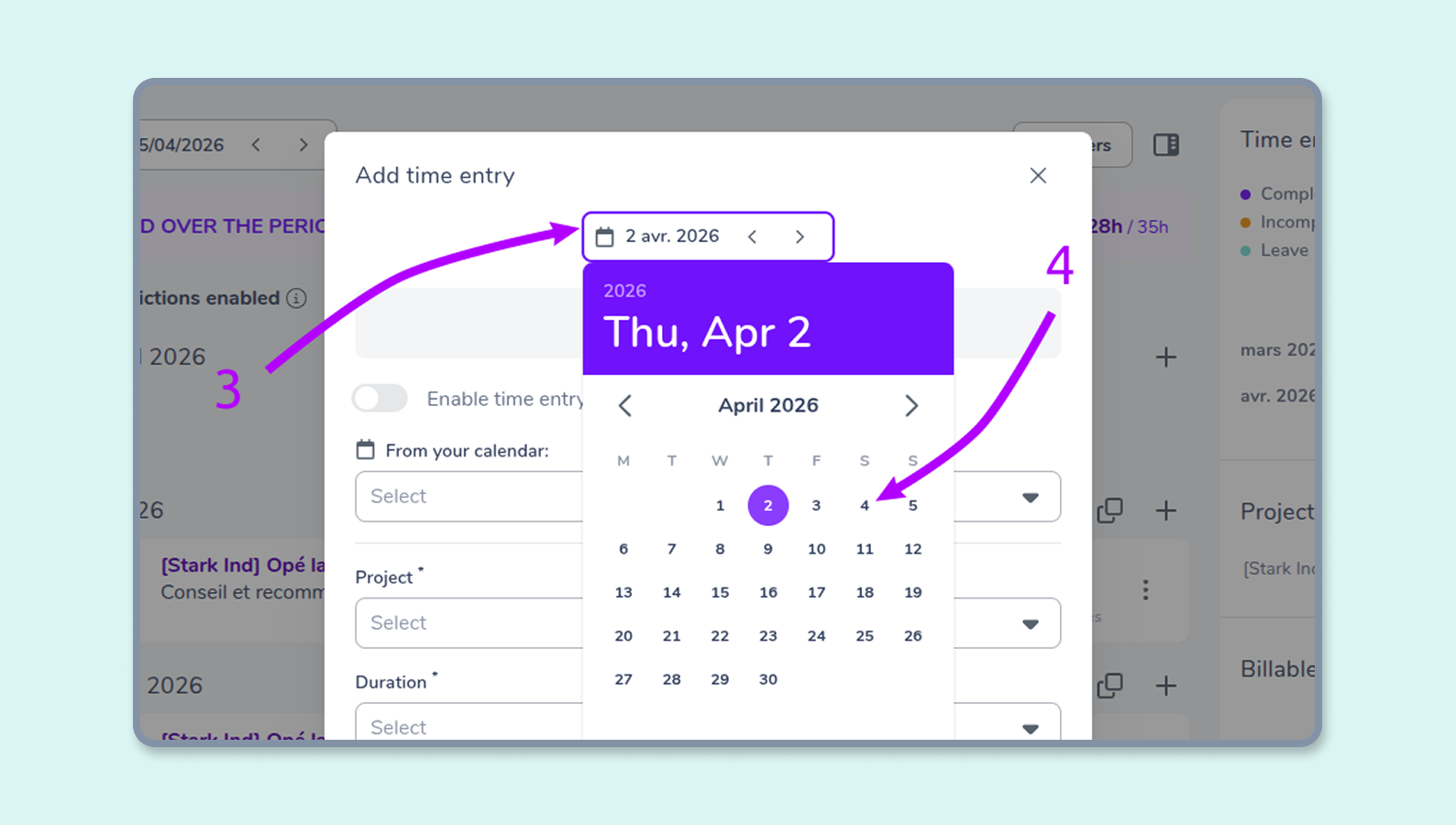
It is possible to log time on weekends directly in Gryzzly, even if those days are not part of your work schedule. Two options are available to you, either from the chatbot or from your dashboard.
Prerequisites
You can log time on weekends if the limitation is disabled in the time entry settings for your team. If this setting is active, it will be necessary to mark the weekend days as working days for the relevant employees. (See the work schedule section)
From the Slack or Teams chatbot
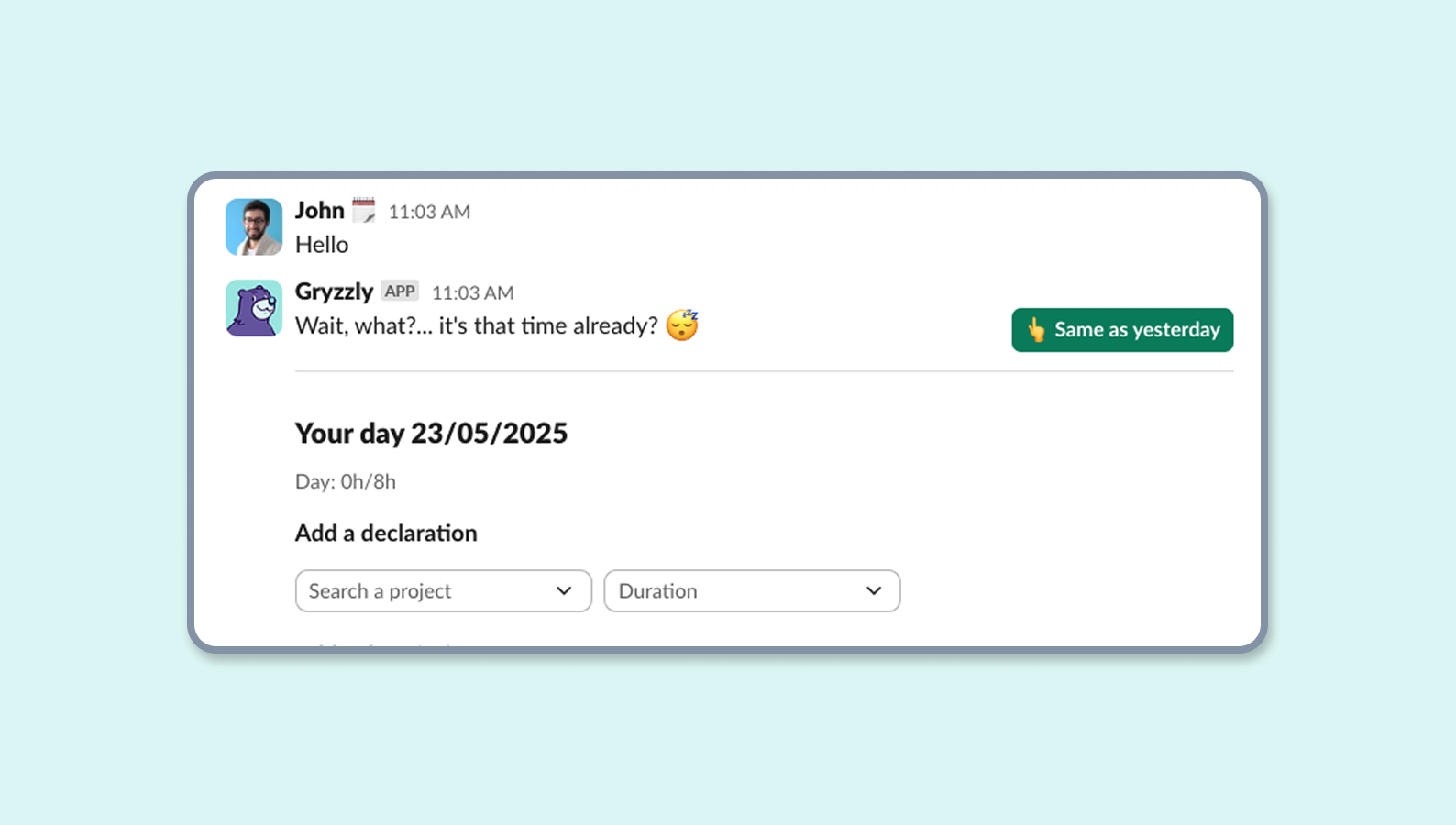
Simply say “Hello” to Gryzzly to log time for the current day, even on weekends.
From the dashboard
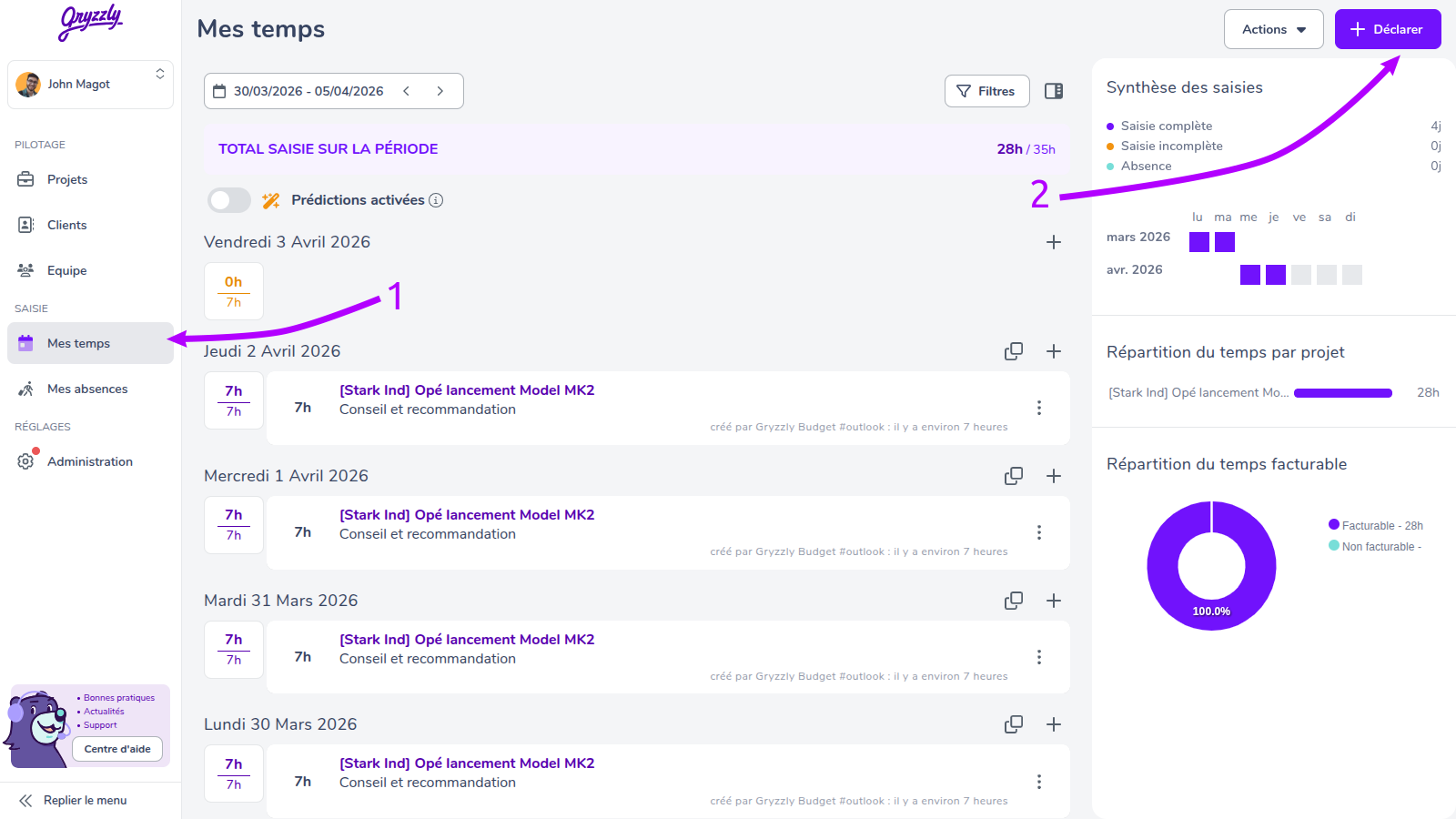
Go to your My Times view, click the + Log time button in the top right corner of the screen — this automatically positions you on the current day, Even if it is a weekend day.
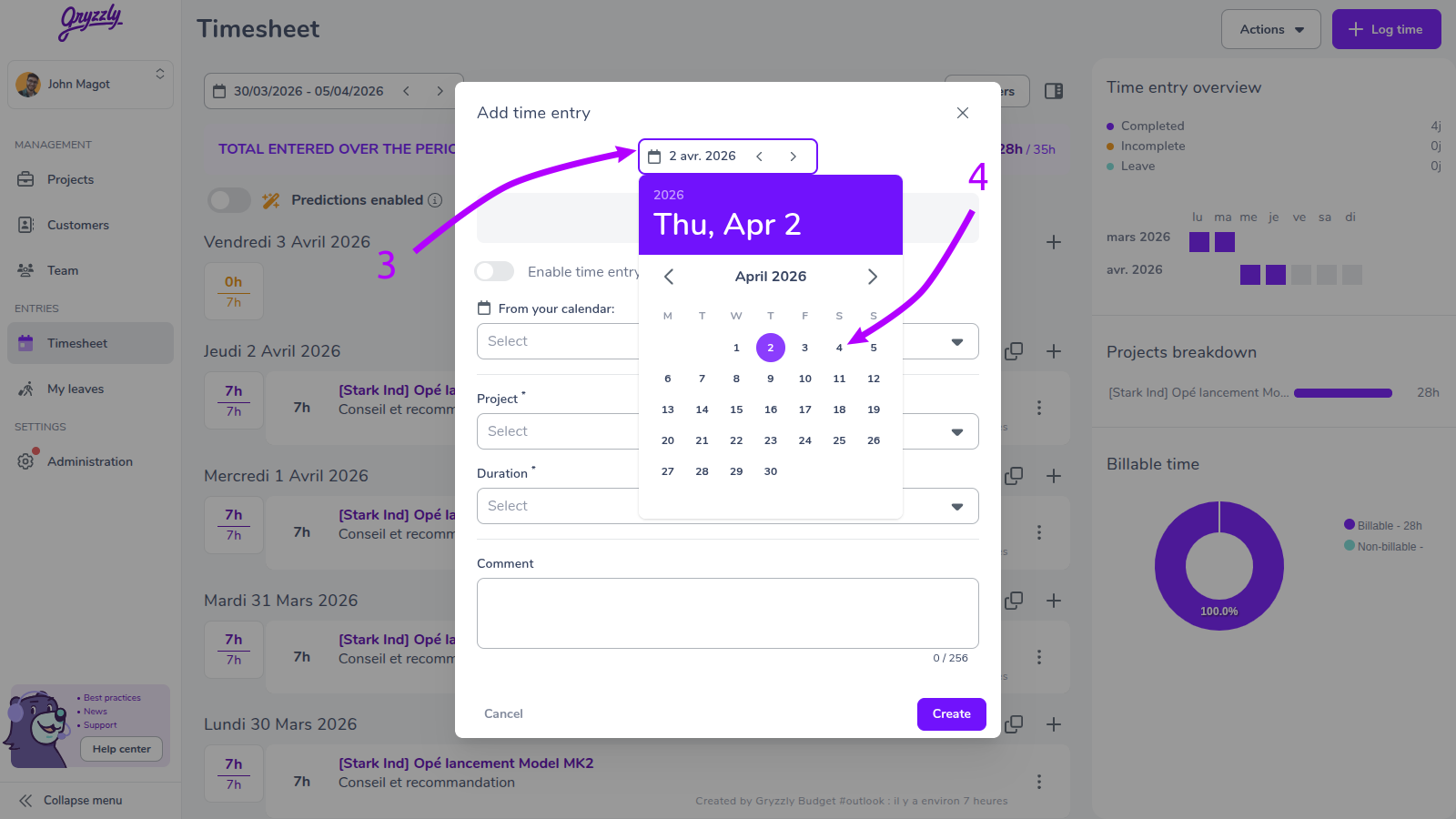
If you want to log time for a past or future day, use the date picker in the declaration window to select the desired day.
Please note
If the application is blocking you, it means the time entry restriction is active. You can either ask your administrator to disable it, or ask them to add the desired days to your work schedule.