My managers can't see their team time entries

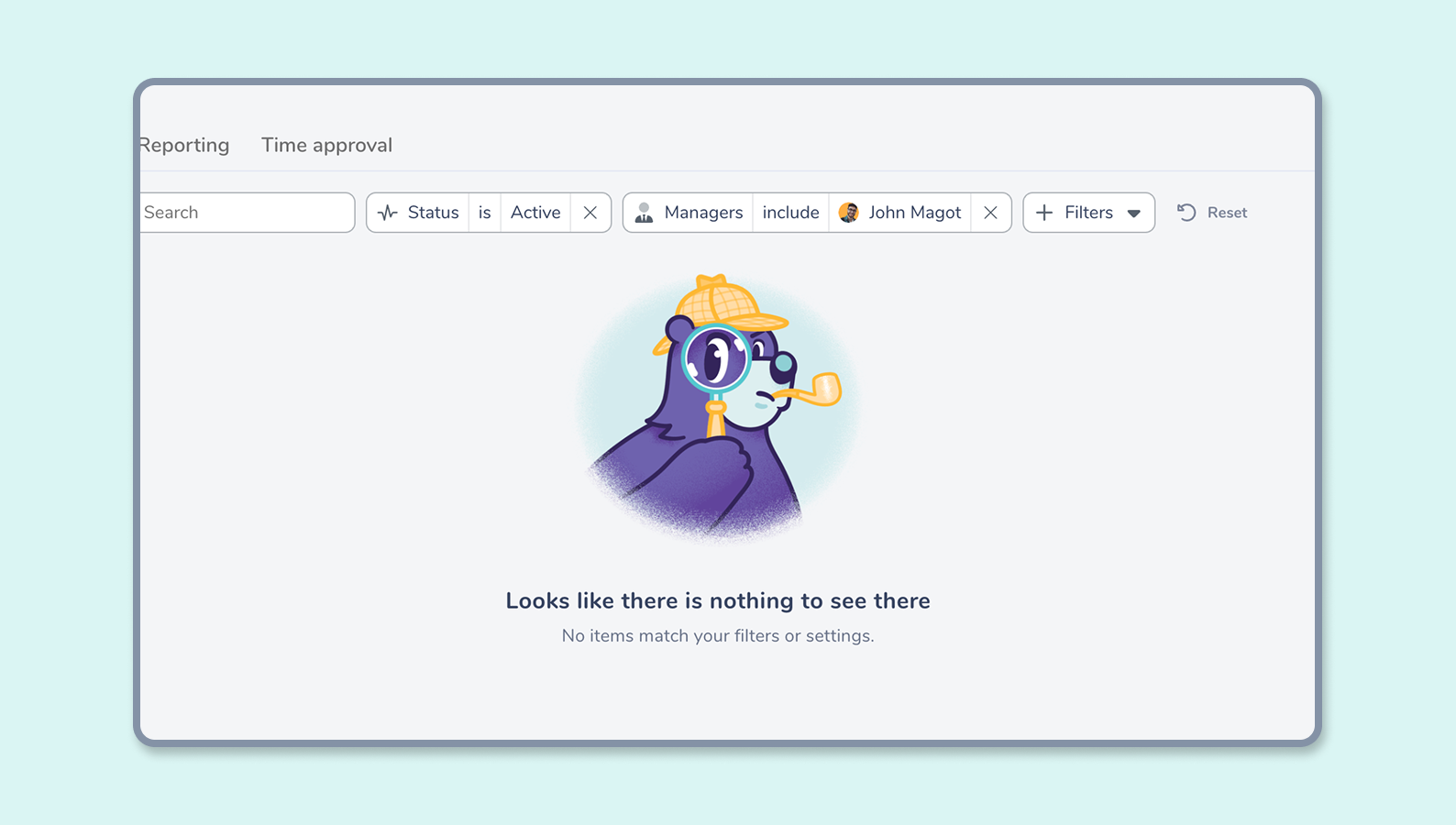
A manager can only see the collaborators they directly manage in their Team page. If this view is empty, it means they are not assigned as a manager of any team. This article explains how this works and how to allow users with the Manager role to track and manage their team’s time.
In practice, within the application, visibility over time entries now depends on the teams to which the manager is assigned as a manager.
This allows you to:
- better reflect each person’s actual responsibilities
- prevent access to irrelevant data
- make information easier to read and more focused
Assigning a team to a manager
To give visibility to a manager, you simply need to assign them to a team.
- Go to Administration > Team
- Create a team (or use an existing one)
- Add the relevant collaborators
- Set your manager as the manager of this team
Once these steps are completed, they will automatically see their team members in the time tracking view.
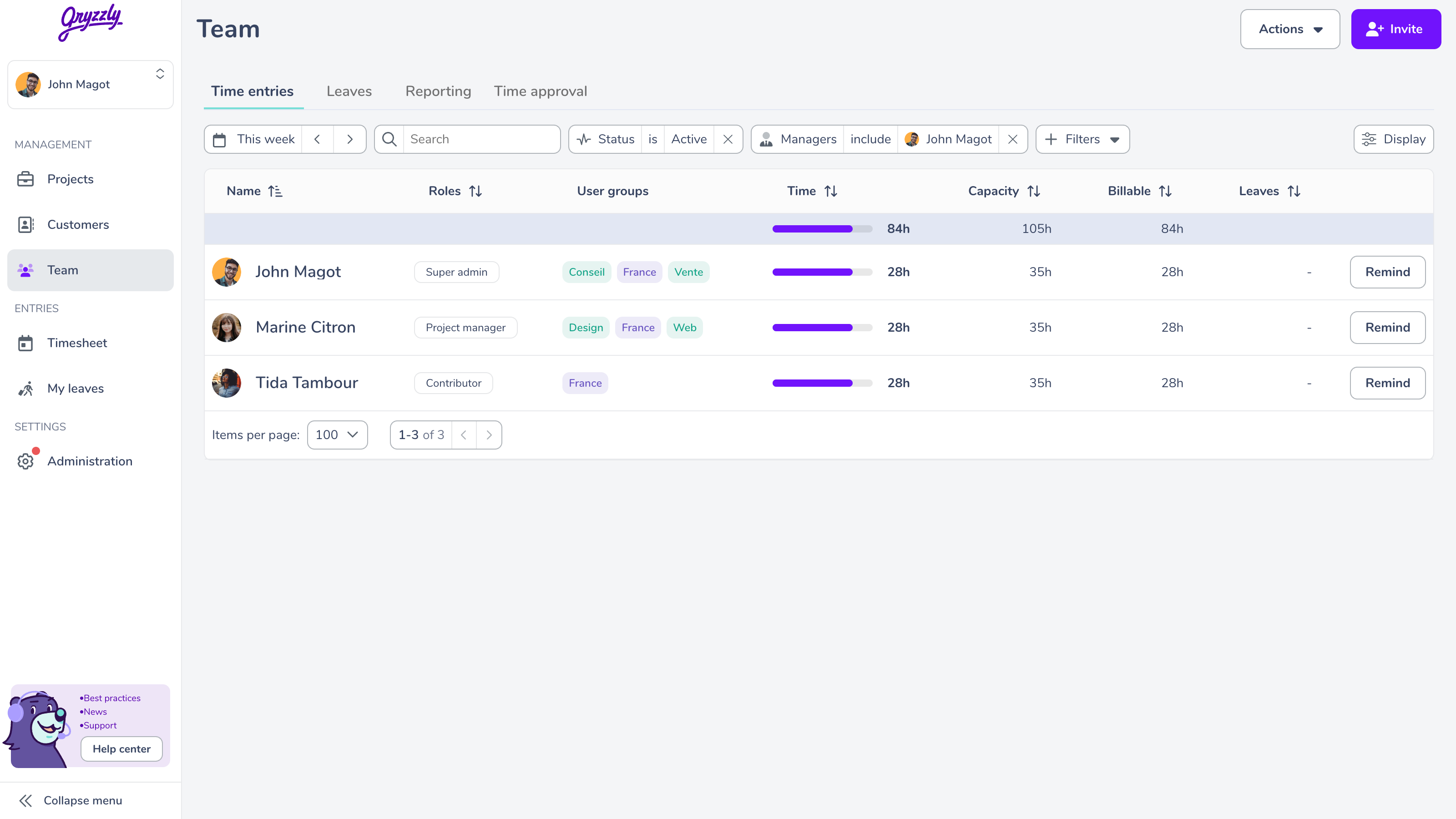
I want my manager to have access to all company users
This is still possible. Simply:
- Create (or use) a team that includes all collaborators
- Assign the manager as the manager of this team
They will then regain full visibility, as before.
Do you have any questions about using Gryzzly or how roles work?