Connect Outlook Calendar to Gryzzly

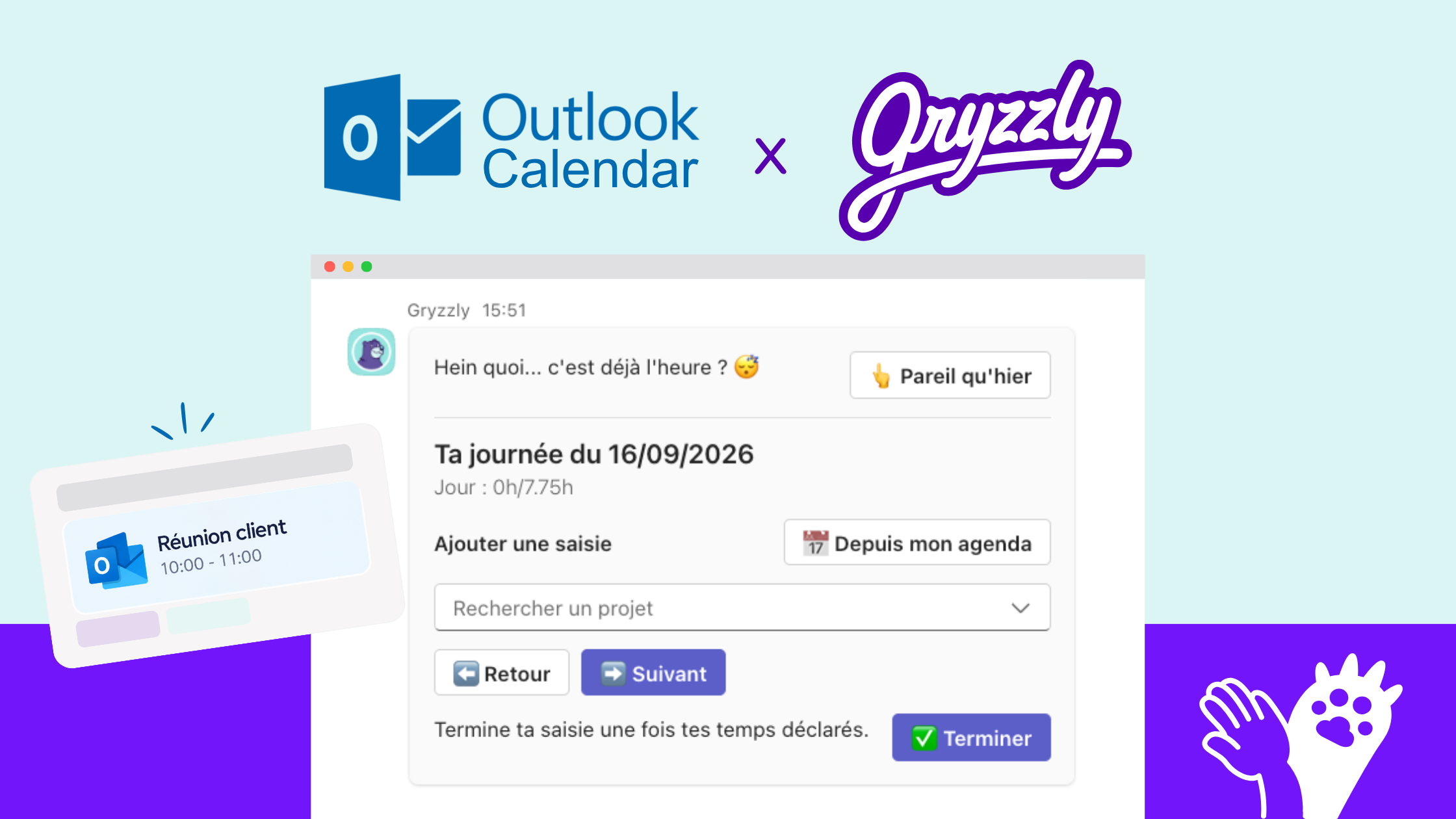
A client meeting at 10am, a project check-in at 2pm, a workshop at 4pm… part of your day is already in your Outlook calendar.
With the Outlook Calendar integration, Gryzzly lets you find these events right when you log your time in Microsoft Teams.
Select an event, link it to the right project, and its duration is included in your entry. You save time and no longer have to piece your day back together after the fact.
How to use Outlook Calendar with Gryzzly
1. Connect your Outlook calendar
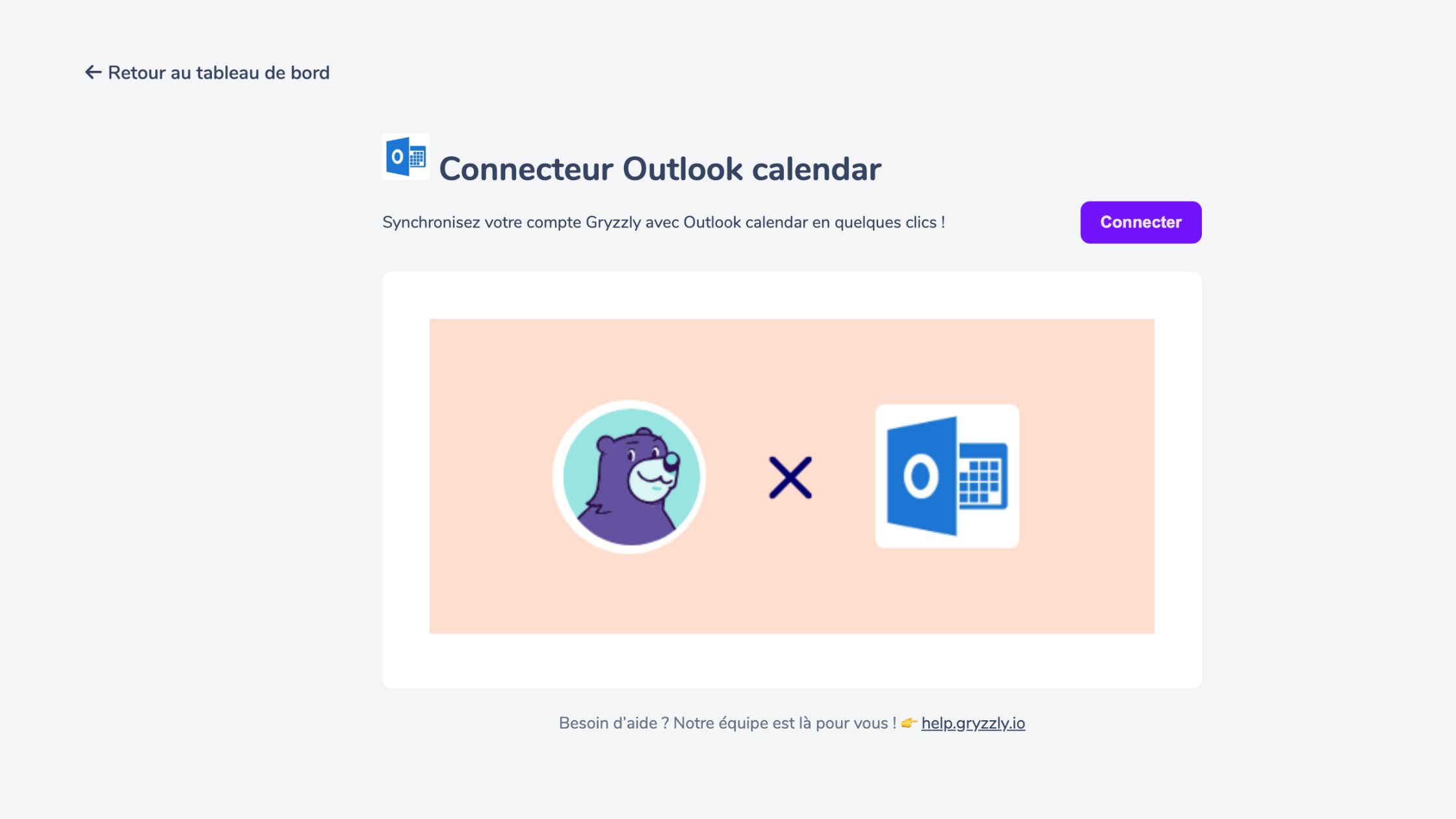
Start by connecting your Outlook account to Gryzzly from Administration > My account > Integrations.
2. Choose the events to sync
Once your Outlook account is connected, you can choose exactly what Gryzzly pulls from your calendar:
- the date from which to import your events
- the event types to sync: free, tentative, busy…
- which calendar(s) to include if you use more than one
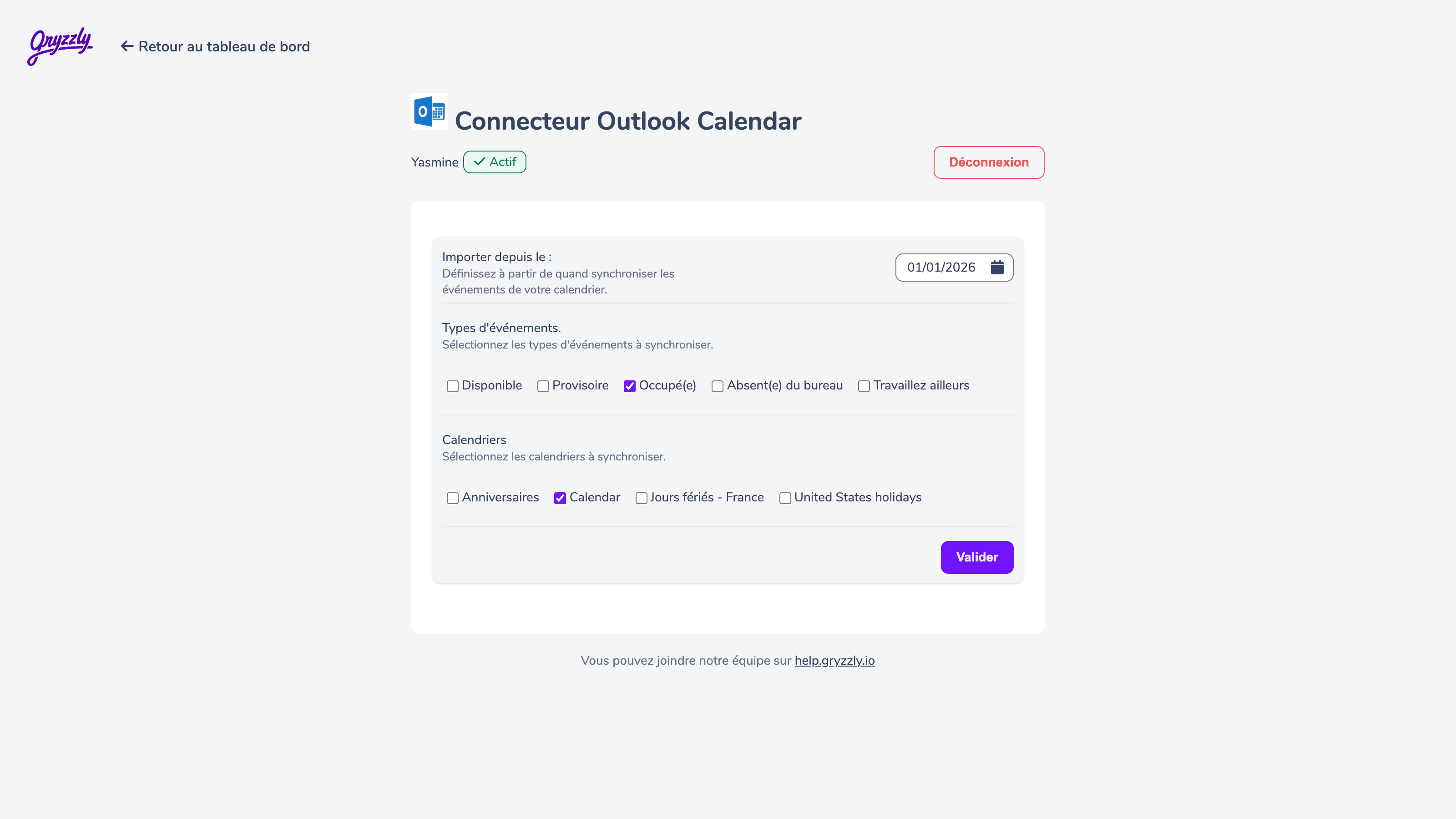
Once you’ve made your choices, click “Confirm”. You can change them at any time from the connector settings.
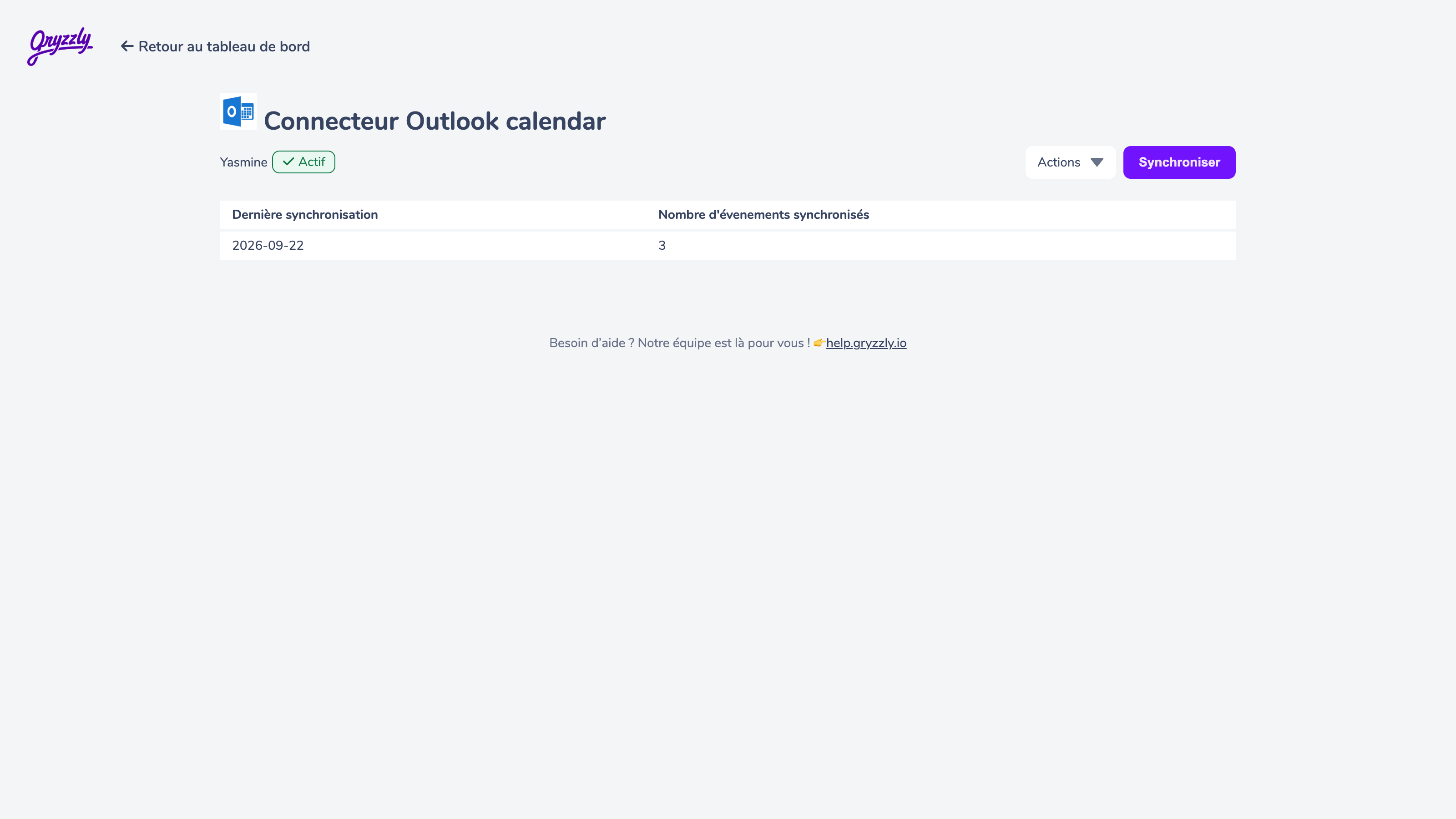
Gryzzly also shows you the date of the last sync and the number of events synced.
3. Select an event from Microsoft Teams
When Gryzzly asks you to fill in your day, click “From my calendar”.
You’ll see the events scheduled in your Outlook calendar for that day. Select the one you want to add to your entry.
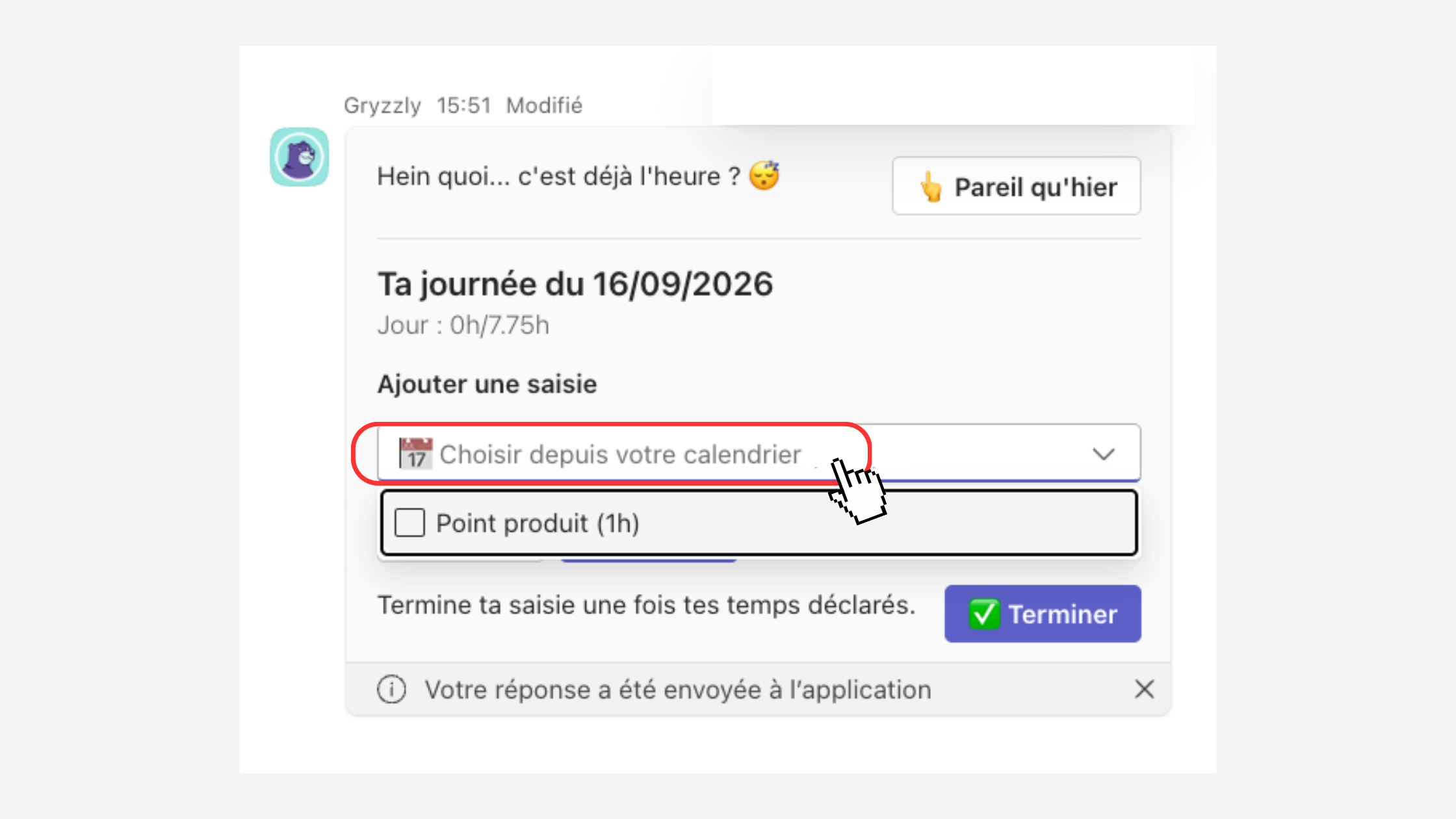
Then choose the Gryzzly project or task that matches the event. The duration recorded in your calendar is carried over to make your entry easier.
4. Gryzzly learns your habits
As you log your time, Gryzzly can remember recurring links between your events and your projects, saving you even more time on future entries.
👉 Connect your Outlook calendar to your Gryzzly workspace now.